
How to plan a project in your browser in 10 minutes
Published May 28, 2026
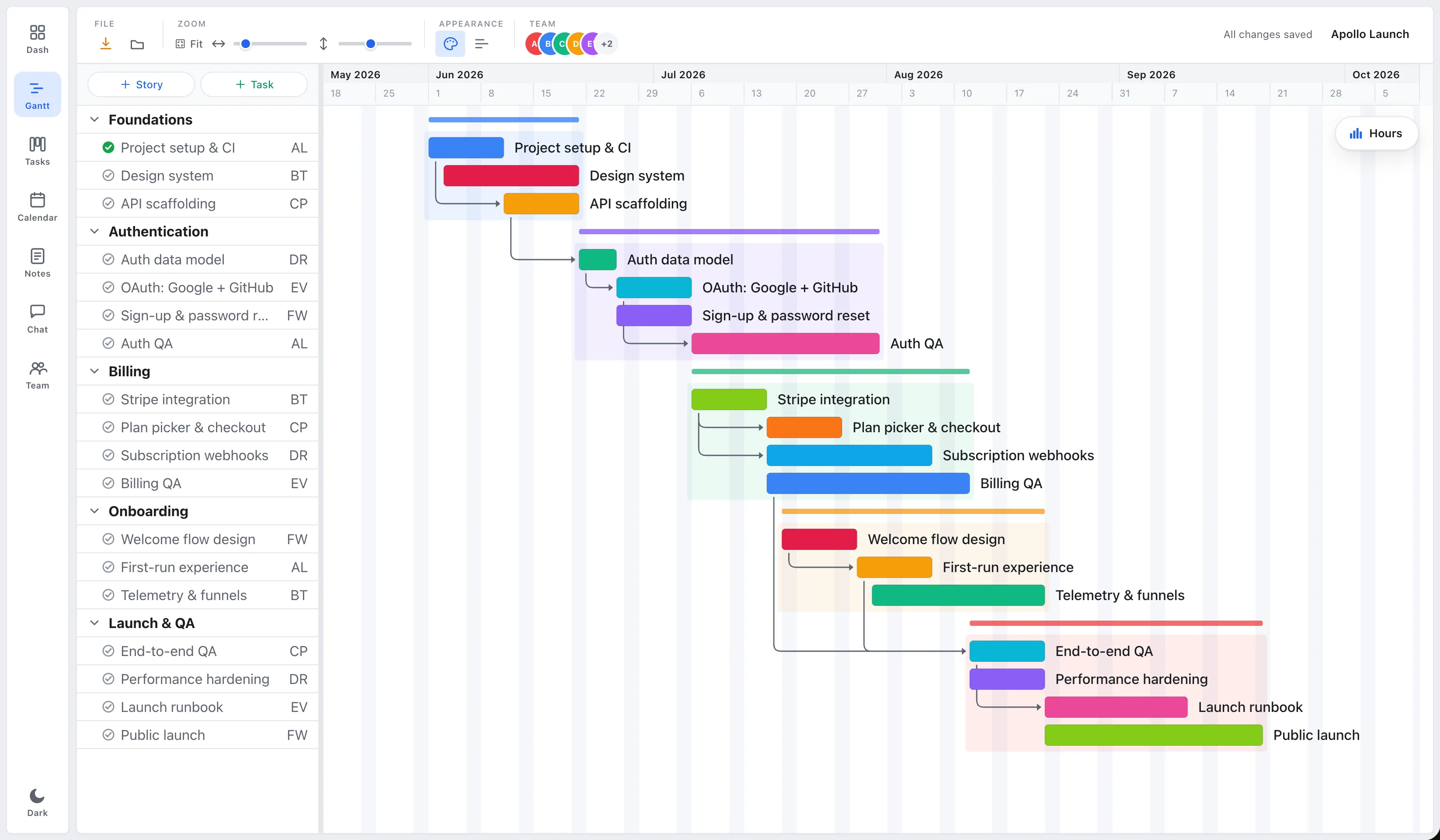
The hardest part of planning a project is the blank page. So let’s skip the theory and actually build one. This is a ten-minute walkthrough that takes you from nothing to a real, shareable plan, no install, no account-required free trial countdown, just a browser tab.
We’ll plan a small launch as the example. Adjust the specifics to your own work as you go.
Minute 0–2: block out the phases
Start big, not small. Don’t open a blank task list and start typing TODOs, you’ll drown. Instead, name the 3–5 phases the project moves through. For a launch that might be:
- Foundations
- Build
- Polish
- Launch
Drop each phase onto the timeline as a span. You now have the skeleton of a plan and a sense of how long the whole thing runs.
Minute 2–5: add the real tasks
Under each phase, add the actual tasks. Keep them coarse, “Design system,” not “pick a button radius.” For each task you really only need four things: a title, a start, an end, and an owner.
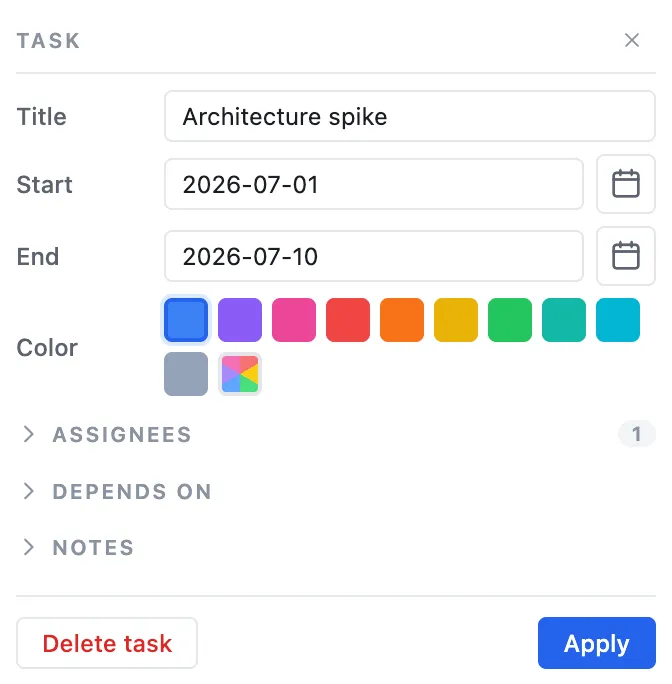
Resist the urge to fill in every field. A title, dates, and an owner is enough to make the plan useful today. You can always add notes later.
Minute 5–7: connect the dependencies
This is the step most people skip, and it’s the one that makes a plan a plan instead of a list. Link each task to the one it unblocks: Build depends on Foundations, Polish depends on Build, and so on.
Now the magic: when you drag a task later because something slipped, everything downstream moves with it. You instantly see whether the launch date is still real. (More on why this matters: real-time vs. status-report project management.)
Minute 7–9: sanity-check capacity
Open the team-capacity view and look for anyone sitting above ~100% in a given week. If one person is carrying three overlapping tasks, move one, to someone else, or to the next week. Better to find the overload now than the Friday before launch. (The 5-person rule goes deeper here.)
Minute 9–10: share it
Invite the team. Everyone opens the same plan in their browser and sees the same live picture, no exporting, no emailing a file around. From here, working the plan is just dragging tasks and checking things off; the timeline, board, and capacity stay in sync on their own.
That’s a complete, honest plan in ten minutes. Building and exporting is free; inviting the team is $3.99/mo per person.
Open a blank plan and try it. Related: what a Gantt chart is actually for.
Frequently asked questions
How do you plan a project online quickly?
Start with 3–5 phases on a timeline, add coarse tasks under each (title, start, end, owner), connect dependencies so downstream tasks move when something slips, sanity-check team capacity, then share. That's a real plan in about ten minutes, all in the browser.
Do you need to install anything to plan a project in the browser?
No. EverGantt runs in a browser tab, no install, and no account-required trial countdown to build a chart. Building and exporting are free; inviting the team is $3.99/user/month.
What's the most important step when planning a project?
Connecting dependencies. It's the step most people skip, and it's what turns a list into a plan, when you drag a task later, everything downstream moves with it so you can see whether the deadline is still real.