How to make a clean Gantt chart for PowerPoint slides
Published October 30, 2026
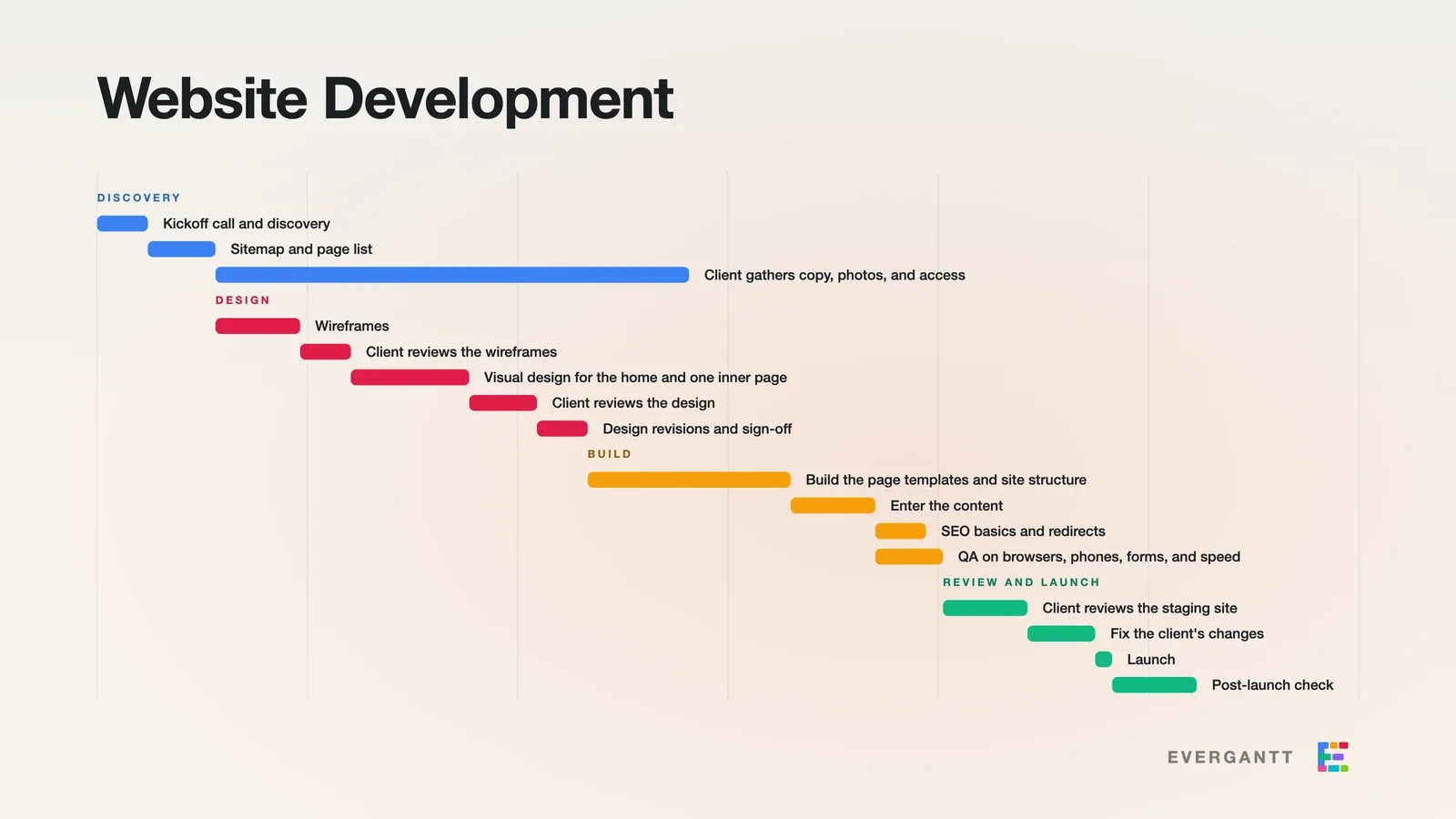
Short answer: Build the plan, open the export menu, pick PNG or SVG, switch Style to Pretty, keep Size at 16:9, and click Light or Dark. You get a slide-ready Gantt chart with phases, bars and task names, and none of the dates, grid lines or task list that make a normal export unreadable on a slide. In EverGantt it’s free and needs no account. Below is what belongs on a schedule slide, the steps, and how to pick format, theme and size.
What should a Gantt chart on a slide actually show?
A Gantt chart on a slide should show the plan’s shape: the phases, the order they run in, and where work overlaps. Dates, assignees, progress ticks and the task list belong in the live plan, not on the slide.
The reason is how slides get read. People look at a slide for a few seconds, often from across a room or on a shared screen at half size. In that time they can take in “discovery, then design, then build, then launch, and the content work runs long.” They can’t take in 40 date labels and a column of initials, because the working chart was built for the person running the project, and the slide is for everyone else.
I hit this making a LinkedIn post for a small joke plan. The standard export and a screenshot of the app both carried more chrome than a five-phase plan needed, so we built Pretty, an export style that leaves all of it out.
How to make a clean Gantt chart for PowerPoint in EverGantt
Open the plan, click the export button in the toolbar (the download icon labeled “Export the chart…”), and choose a format. Then set the style. Getting a Gantt chart into a PPT deck this way takes under a minute.
- Start with a plan. Use your own, or open a template and edit it. The free Gantt chart maker works without an account.
- Pick a format. PNG, PDF, or SVG. All three support Pretty.
- Switch Style to Pretty. The dialog opens on Standard. Pretty changes Size to 16:9 automatically if you hadn’t picked one.
- Check the options. “Show title” is on by default and puts the project name at the top. “Show dependency lines” is off by default.
- Click Light or Dark. Those two buttons pick the theme and run the export.
Pretty draws the project title, phase headings in each phase’s color, rounded bars on a true time scale, and the task names. It never shows dates, the today line, or the task list.
PNG, SVG, or PDF: which works best in a slide deck?
Use PNG unless you have a reason not to. It drops into PowerPoint, Google Slides and Keynote the same way, and EverGantt renders it at twice the frame size, so a 16:9 Pretty PNG comes out at 3200 by 1800 pixels. That’s sharper than most projectors and shared screens can show.
Pick SVG when the deck lives in PowerPoint for Microsoft 365. Microsoft documents SVG support in Word, PowerPoint, Excel and Outlook (Insert, then Pictures, then This Device), and on Windows you can use Convert to Shape to recolor a bar or nudge a label. SVG stays crisp at any zoom, which helps if someone screenshots the slide later.
Google Slides doesn’t reliably accept SVG uploads, so use PNG there.
PDF is for sending the picture on its own. Pretty PDFs fill the page edge to edge with no white border, so it reads as a one-page handout rather than a printout of an app.
Light or dark: which theme fits your deck?
Match the slide background. Use Light on white or pale templates, which covers most corporate decks, and Dark on dark title slides, keynote-style decks, and anything going on social media.
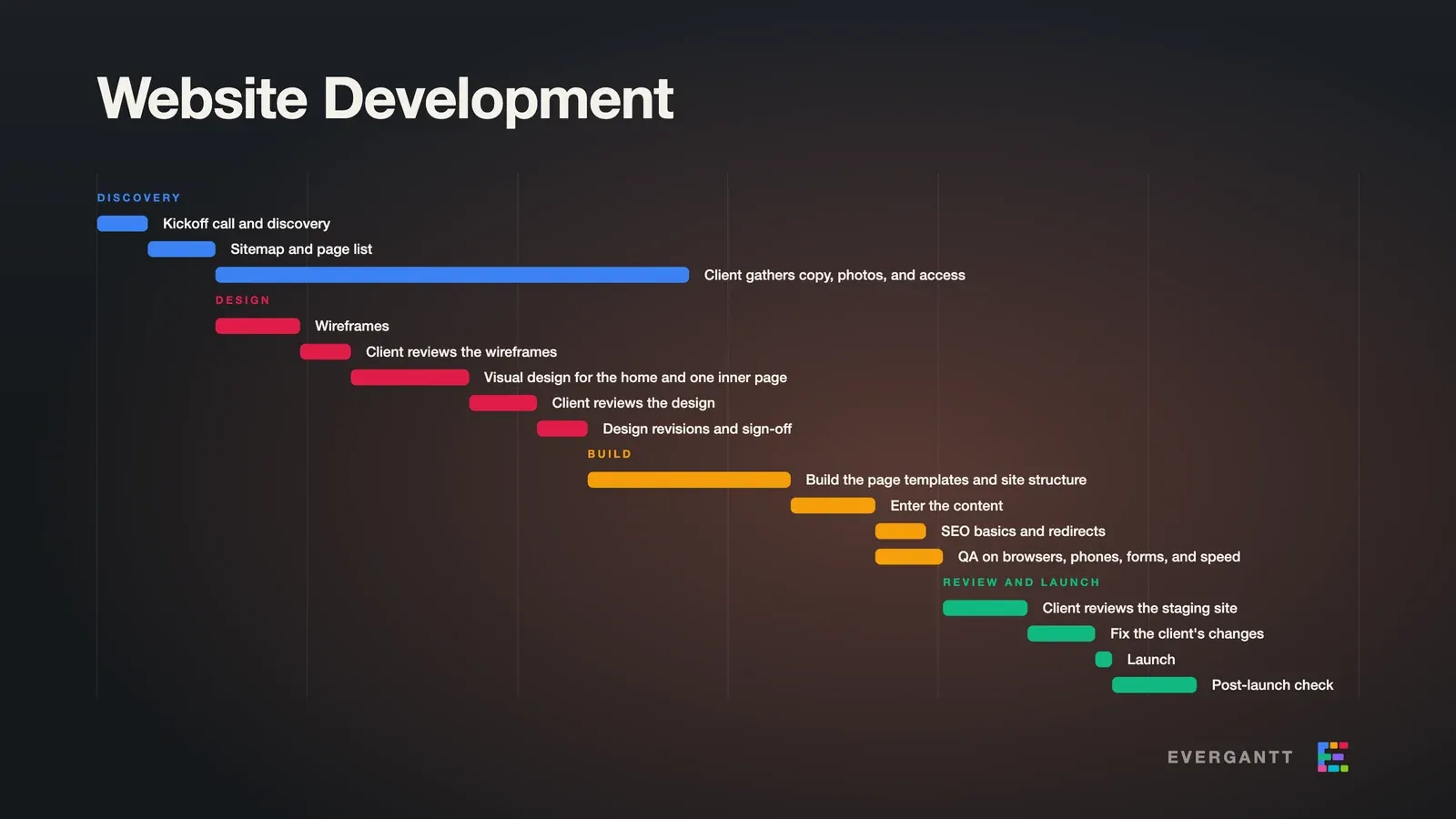
Each theme has its own background. Light uses a warm off-white with a faint clay glow, so it sits on a white slide without looking like a pasted-in box. Dark uses near-black ink with the same glow, closer to a designed graphic than a screenshot. The bars keep their real phase colors either way, and in Light the phase headings are darkened just enough to stay readable, so an amber “BUILD” heading doesn’t vanish on a pale background.
If you aren’t sure, export both. It takes ten seconds, and you can try each on the actual slide before the meeting instead of guessing.
How many tasks fit on one Gantt chart slide?
About 15 tasks fit comfortably on a 16:9 slide. Past that, the rows get thin and the names get small, and the slide stops reading at a glance.
Pretty still exports bigger plans. It scales the rows and text down to fit the frame and cuts long task names off with ”…” so one wordy task can’t squash the chart. Above roughly 30 tasks the export dialog shows a hint, “Pretty works best for small plans, up to about 30 tasks,” but it never blocks you.
For a big project, you’ve got three better options than cramming:
- One phase per slide. Duplicate the plan, delete everything but one phase, and export each one.
- Roll small tasks up. Replace five two-day tasks with one “Content entry” bar for the slide version.
- Show the next stretch only. For a status meeting, the next six weeks matter more than the whole year.
The full detail stays in the working plan, where the people doing the work can find it.
When should you show dependency lines and the title?
Leave dependency lines off for most slides and turn them on when the order of work is the point. Keep the title on unless the slide already has a heading.
Dependency lines are the soft elbow arrows from one task to the next. They’re off by default because on a plan with lots of links, the arrows become the busiest thing on the slide. Turn them on when you’re explaining a handoff: “design sign-off has to land before the build starts, and the client’s copy holds up content entry.” On a plan with a handful of links, they tell that story in one picture.
The title is on by default and prints the project name large in the top-left corner. Turn it off when the chart sits under your slide’s own title, so you don’t say “Website Development” twice. With the title off, the chart moves up and gets more room.
Can you use the same export for LinkedIn or Instagram?
Yes. Choose 4:5 (portrait) in the Size menu and use the Dark theme. That’s the tall frame LinkedIn and Instagram feeds show at full size, so the chart takes up more of the screen than a 16:9 image would.
A portrait frame changes the layout. The chart gets taller and narrower, which works best when the plan steps down the page in a clear staircase. Plans with a few long bars side by side read better at 16:9 or 1:1 (square). Short task names help too, because the width for labels is tighter.
For social, I’d keep dependency lines off and the title on. The title tells someone scrolling past what they’re looking at, and the arrows are hard to read at phone size.
Every Pretty export carries a small EverGantt mark in the bottom-right corner, on free and paid plans alike. It’s there in the images on this page.
The slide is a snapshot, so keep the plan live
A Gantt chart on a slide is out of date the moment a task slips. That’s fine for a kickoff deck or a client pitch, where the job is to show the shape of the work. It’s a problem when the slide becomes the plan.
The trap is the weekly re-export: the plan changed, so someone rebuilds the slide, and the deck slowly turns into a status report that’s always a week behind. Keep one live plan as the single source of truth and treat the slide as a picture of it at one moment. When someone asks a detailed question, open the real chart instead of defending the slide.
Building and exporting, Pretty included, are free in EverGantt with no account. For the dated version for print or client sign-off, the standard export guide covers page sizes, blurry PNGs and missing arrows.
Open the free Gantt chart maker, build the plan, and export it as Pretty.
Frequently asked questions
How do I make a Gantt chart for PowerPoint?
Build the plan in a Gantt tool, then export it as an image sized for a slide. In EverGantt, open the export menu, pick PNG or SVG, switch Style to Pretty, keep Size at 16:9, and click Light or Dark. Insert the file on a blank slide. It's free and needs no account.
What should a Gantt chart on a slide show?
The shape of the plan: the phases, the order they run in, and where work overlaps. Leave dates, assignees, progress, and the task list out. A slide is read in a few seconds from across a room, so anything the audience can't take in at a glance is clutter.
Should I use PNG or SVG for a Gantt chart in PowerPoint?
PNG works everywhere, including Google Slides and Keynote. EverGantt renders a 16:9 Pretty PNG at 3200 by 1800 pixels, sharp enough for a projector. Use SVG when the deck is in PowerPoint for Microsoft 365 and you want it to stay crisp at any zoom or to recolor parts with Convert to Shape.
How many tasks fit on a Gantt chart slide?
About 15 reads well on a 16:9 slide. Pretty export still works on bigger plans by scaling rows down, and the export dialog shows a hint above 30 tasks. For a large project, show one phase per slide or roll small tasks into a few summary bars.
Is there a free PPT schedule generator?
EverGantt's Pretty export works as one. Type your tasks into the free Gantt chart maker or start from a template, then export a 16:9 image built for slides. There's no account, no watermark beyond a small EverGantt mark in the corner, and no export limit.