Project management software with a calendar view (2026)
Published June 3, 2026
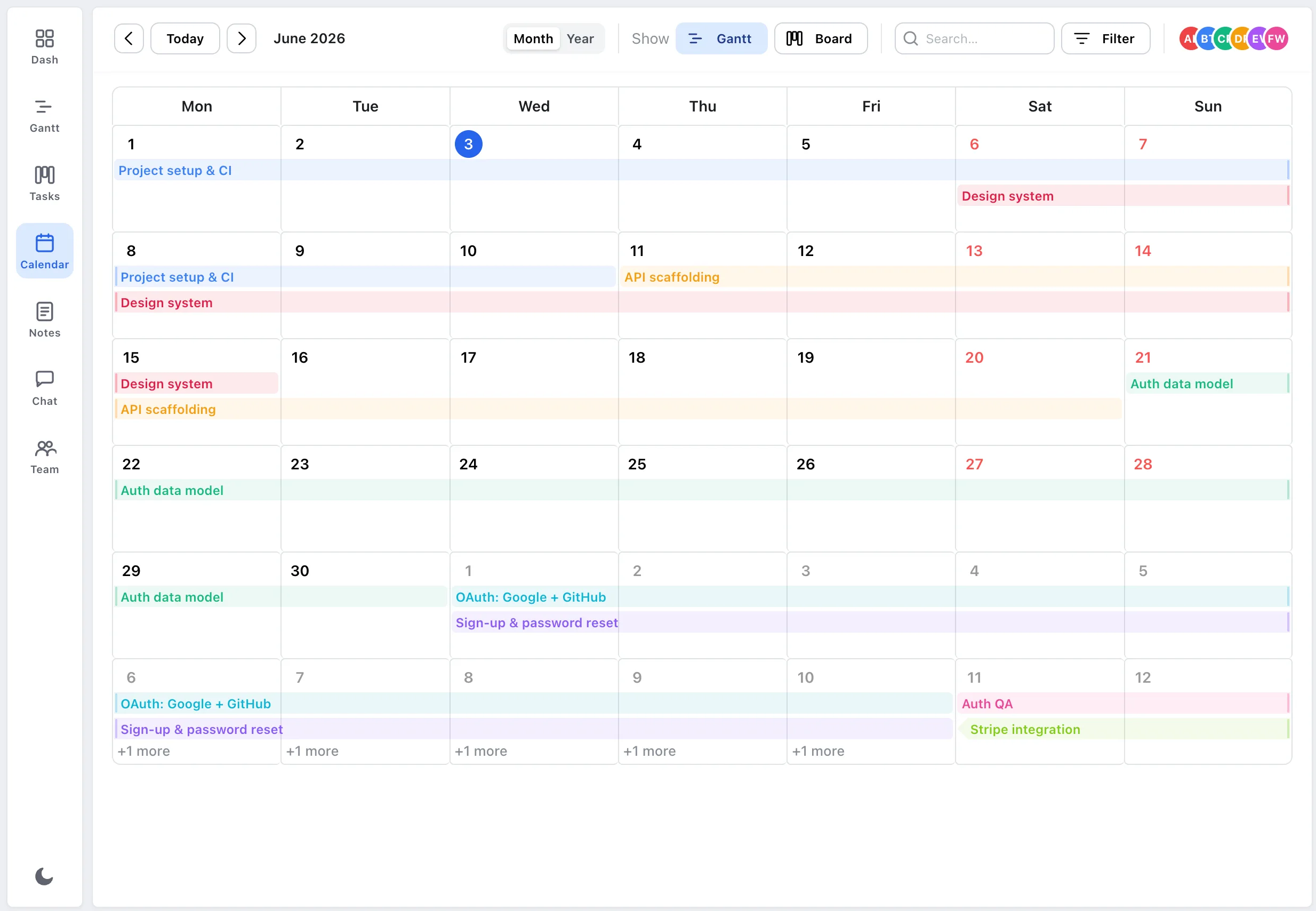
Short answer: Yes, some project management software, including EverGantt, gives you a calendar view that lays your tasks across a real month, so you can see what’s due, who’s on the hook, and when, all at a glance. A calendar is the right view when dates are the question. When the question is order, what depends on what, a Gantt timeline is still the better lens. The good news is you shouldn’t have to choose: the best setup is one plan you can flip between a calendar, a board, and a Gantt.
Why use a calendar view for task tracking?
A calendar answers a question the other views fumble: what’s actually happening this week? A task list tells you what exists. Your board tells you what stage each item is in. Neither one shows you, at a glance, that three deadlines all land on the same Thursday.
That’s the calendar’s job. Tasks sit on the days they span, so an overloaded week looks overloaded, you spot the pile-up before it turns into a missed date. For anyone tracking work against real dates, client deliverables, a launch, a content schedule, it’s the most natural view there is, because it matches the thing already on everyone’s wall and phone.
What a calendar view is good at, and what it isn’t
Be honest about the trade-off. A calendar is a date-first view. It’s excellent for spotting deadlines, gaps, and crunch weeks, and for a quick read on who’s busy when. It’s not the place to model dependencies; “task B can’t start until A ships” is a relationship a grid of days can’t really draw.
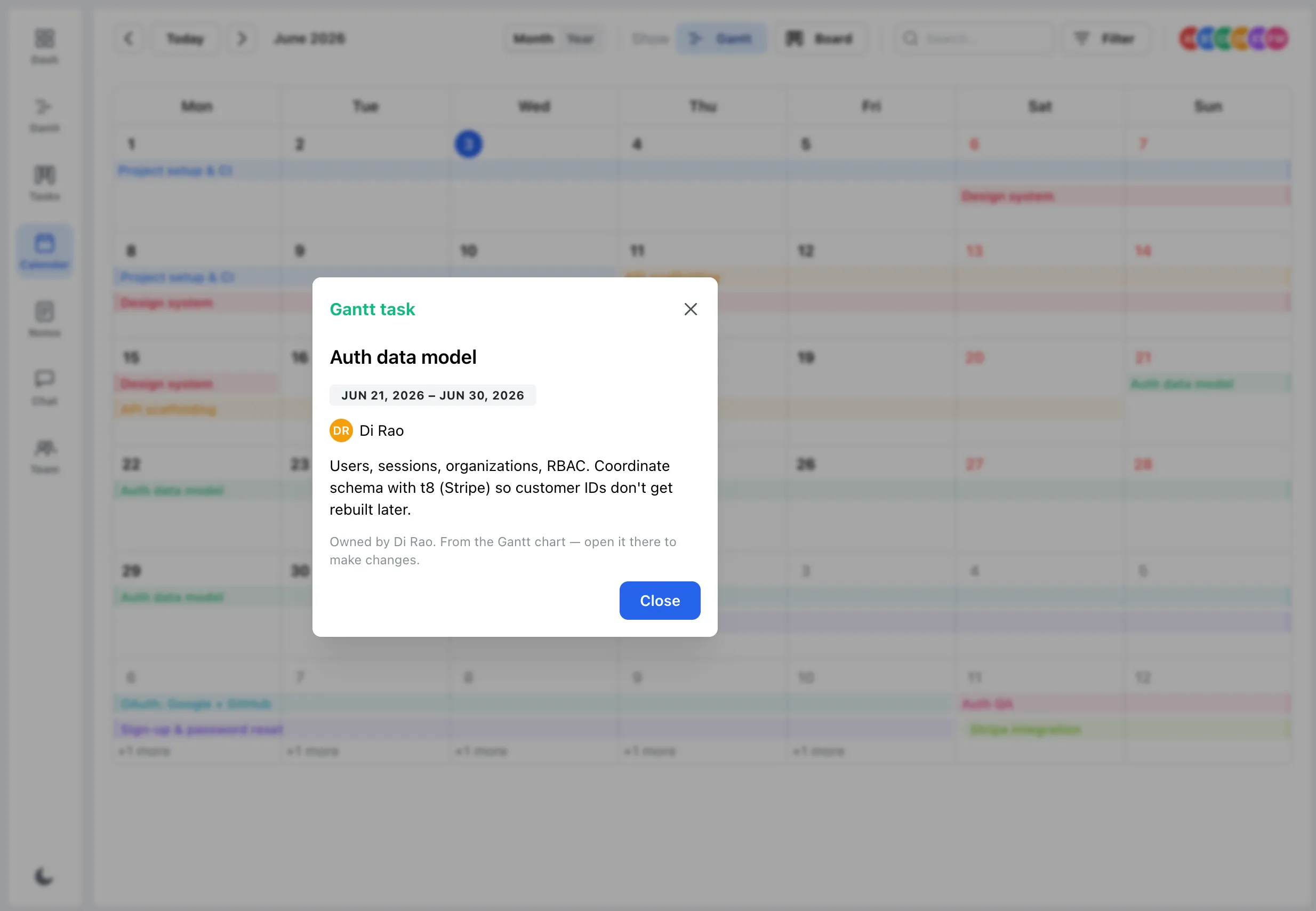
So track on the calendar, and plan the logic on the Gantt. In EverGantt, clicking any task on the calendar opens its details, owner, date range, and notes, and points you to the Gantt to change the schedule itself. The calendar shows you the what and when; the Gantt is where you reshape it. (What a Gantt chart is actually for.)
One plan, three views: Gantt, board, and calendar
One thing matters more than any single view: it should all be the same plan. A calendar that lives in a different app from your tasks is just one more thing to keep in sync, and that’s exactly how teams drift back into scattered trackers and the spreadsheet.
EverGantt treats the calendar, the Kanban or scrum board, and the Gantt timeline as three lenses on one source of truth. Schedule a task once and it shows up everywhere: a bar on the timeline, a card on the board, a block on the calendar. Update it in one place and the others move with it, nothing to export, and no second copy to keep current. (Why one shared plan beats more tools.)
Switching is a click, Month or Year on the calendar, or hop to the board or Gantt from the same toolbar.
How task tracking works on the EverGantt calendar
It’s meant to be boring to use, in the good way:
- Open the Calendar view from the sidebar. Your scheduled tasks and stories land on the days they cover.
- Read the week. Colored bars span their dates, and a busy day tucks the extras into a “+N more” you can expand.
- Click any task to see its owner, date range, and notes.
- Jump to the Gantt to change dates or dependencies, and the calendar updates to match.
- Filter or search to narrow down to one person, one story, or one stretch of the month.
That’s the whole loop. Nothing to install and nothing to learn, it runs in your browser, free for individuals and $3.99/user/month for teams.
Want a calendar that’s part of your plan instead of a copy of it? Start free in your browser, or see pricing first.
Keep reading: The easiest project management software · Plan a project in your browser in 10 minutes · Real-time vs. status-report project management.
Frequently asked questions
Does project management software like EverGantt have a calendar view?
Yes. EverGantt includes a calendar view that lays your scheduled tasks and stories across a real month, with a year view too. Click any task to see its owner, dates, and notes. It's one of three views, calendar, Kanban or scrum board, and Gantt, onto the same plan.
When should you use a calendar view instead of a Gantt chart?
Use a calendar when the question is about dates, what's due this week, who's busy when, where deadlines pile up. Use a Gantt when the question is about order, what has to finish before the next thing can start. Most small teams want both, on one shared plan.
Can a calendar view show what the whole team is working on?
Yes. Because every scheduled task sits on its real dates, a calendar makes a crunch week obvious at a glance, and you can filter to one person to see their month. For a deeper read on who's overloaded, EverGantt also has a team-capacity view.
Is a calendar view enough on its own for project management?
For simple, date-driven work, often yes. But a calendar can't show dependencies, that task B waits on task A. EverGantt pairs the calendar with a Gantt timeline and a board, so you track by date and plan the logic in one place instead of juggling separate tools.