Gantt chart mobile app: EverGantt now works on your phone
Published October 24, 2026
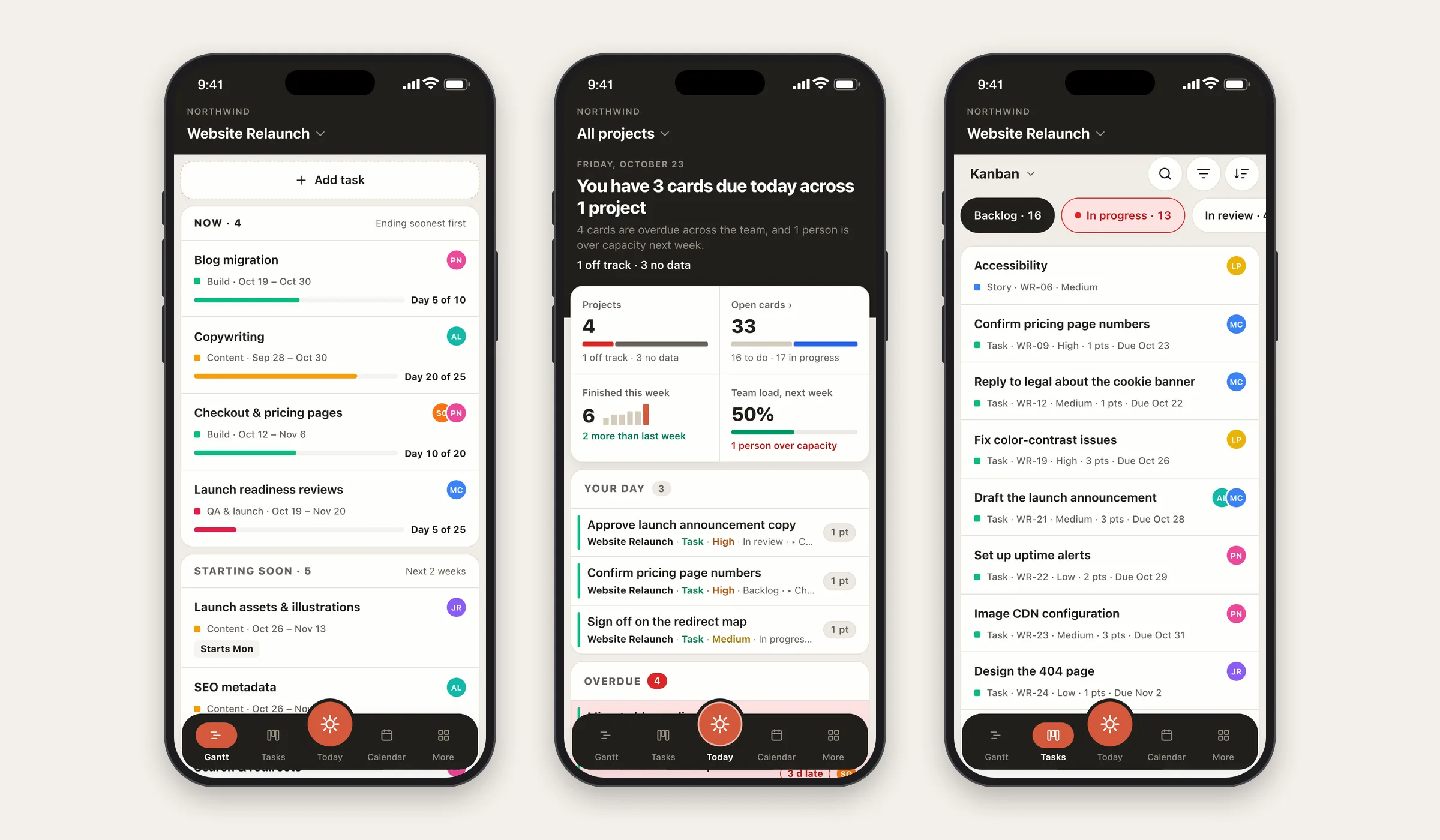
Short answer: EverGantt now works properly on your phone. Open app.evergantt.com on a phone and you get a layout built for one hand and a small screen: your plan as a Gantt list, your board, a month calendar, and a Today view of what’s due. It’s the same plan your laptop shows, and there’s nothing new to learn.
Why we built a phone layout instead of shrinking the desktop
Small teams don’t plan from a desk all day. They check the plan between site visits or on the train, and that’s exactly when a squeezed desktop app falls apart. You get tiny bars, menus off the edge of the screen, and buttons you can’t hit with a thumb.
I wanted the phone version to feel designed for a phone, so the phone layout is its own design, built around the questions you actually ask on one. What’s happening now? What’s due today? Can I move this task a day? It’s the same plan underneath, the single source of truth your desktop already uses, just shown in a way that fits a phone.
It opens automatically. EverGantt checks the device, not the window, so phones (foldables included) get the phone layout, and tablets and laptops keep the full desktop view. If you ever want desktop on your phone, it’s one switch away in More.
What can you do in the EverGantt mobile app?
Five tabs run along the bottom: Gantt, Tasks, Today, Calendar, and More. Between them you can do the everyday work of a project without reaching for a laptop.
- Gantt. Your timeline as a list, grouped into Now, Starting soon, Later, and Done. Each task shows its story, its dates, who’s on it, and a progress bar while it’s running.
- Tasks. Your board as phone-sized lists, in Kanban, scrum, or tracker mode.
- Today. What’s due today and what’s overdue, across all your projects.
- Calendar. A month grid with the day’s events and Gantt tasks underneath.
- More. The project dashboard, notes, team and hours, appearance, and your account.
Tap any task or card and a settings sheet slides up with everything you can change. Made a mistake? Most changes show an Undo button for a few seconds, so a slip is easy to take back.
Editing your Gantt chart from a phone
A full Gantt chart doesn’t fit on a phone. Dozens of bars across months of dates turn into a smudge at that size. So on a phone, your Gantt is a list that answers “what’s happening now” first, and keeps the dates one tap away.
Tap a task to open its sheet. From there you can:
- Change the dates, or nudge them by one day back, one day forward, or a week forward.
- Assign people and set their hours on the task.
- Add predecessors, so the task waits on the work before it.
- Write notes, and mark it complete when it’s done.
Need a new task? ”+ Add task” asks which story it belongs to and opens it ready to type. Every change lands on the same plan your desktop shows, so the bars on your computer move to match. When you’re back at a desk, the full Gantt timeline is right where you left it.
Your board on a phone: Kanban, scrum, and tracker
The board shows one column at a time on a phone, with a row of chips across the top to switch columns. Each chip shows its count, and a chip turns red when a column is over its WIP limit. That’s the pull system doing its job, visible even on a small screen.
A slim toolbar sits above it all. The type menu switches the board between Kanban, scrum, and tracker. Search finds a card by title, notes, or code. Filter and Sort use exactly the same options as desktop: type, priority, due date, and assignee, sorted by priority, due date, title, and more. When a filter hides cards, a line says so (“Showing 9 of 37”) with a Clear button, so nothing quietly goes missing.
Scrum teams can run sprints right from the phone: create one, set its dates and goal, start it, and complete it. When you complete a sprint, it asks where unfinished cards should go. If you’re new to sprints, here’s what a sprint actually is.
Today and Calendar: what’s due, at a glance
Today is the view we wanted most on a phone. It opens to a plain answer: how many cards are due for you today, and what’s overdue, across every project in your workspace. Below that is the list itself, so you can tap straight into a card. Team workspaces also see next week’s load for each person.
The Calendar shows your month with dots for events and thin bars for Gantt tasks. Tap a day and its events and tasks appear underneath, labeled Starts, Ends, or Ongoing. You can add an event, change its dates, repeat it weekly or monthly, or delete it, right there. It’s the same calendar as the desktop calendar view, which now also keeps a day list beside the month.
Today needs a Pro plan, since it reads across your saved projects. Signed-out visitors see a Sign in card in its place, and free accounts an Upgrade card, so nothing pops up uninvited.
What does the mobile app cost?
It costs the same as EverGantt on any other device. Building, editing, and exporting a chart is free in your browser, with no account, and that includes your phone. Saving to the cloud starts at Pro, which also unlocks the Today view. Team and Business add shared projects for your group. Every new account gets a 7-day Pro trial with no card required. The details are on the pricing page.
We kept it this way on purpose. Planning software costs too much when you pay extra for every device and add-on, so the phone is simply part of the product.
Ready to try it? Open app.evergantt.com on your phone, or start free in your browser.
Keep reading: Project management tools with mobile apps (2026) · The easiest project management software · Real-time vs. status-report project management.
Frequently asked questions
Does EverGantt have a mobile app?
Yes. Open app.evergantt.com on a phone and you get a layout built for the small screen: a Gantt list, a Kanban or scrum board, a month calendar, and a Today view. It works from the same plan your laptop shows.
Can I run a sprint from my phone?
Yes. On the Tasks tab in scrum mode, you can create a sprint, set its dates and goal, start it, and complete it. Completing a sprint asks where its unfinished cards should go. Search, filters, and sort work the same as on desktop, so each person can narrow the board to their own cards.
Can I edit my Gantt chart from my phone?
Yes. On a phone, EverGantt shows your plan as a list grouped into Now, Starting soon, Later, and Done. Tap a task to change its dates, nudge it by a day or a week, assign people and hours, add predecessors and notes, or mark it complete. Every change syncs to the same plan your desktop sees.
Is the mobile app free?
Building, editing, and exporting a chart is free in your browser, on a phone or a computer, with no account. Saving to the cloud starts at Pro, which also unlocks the Today view across all your projects. Team and Business add shared team projects. New accounts get a 7-day Pro trial, no card required.
Does EverGantt work on tablets and foldable phones?
Phones get the phone layout, including foldables, folded or open. Tablets and computers get the full desktop layout, since they have room for it. If you'd rather have desktop on your phone, More then Use desktop layout switches it for that device.